How to Photograph and Mock Up Shirts That Sell

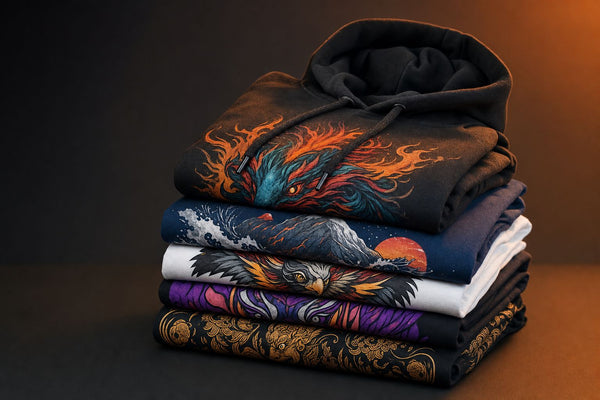
Online shoppers cannot touch the fabric, inspect the print, or try on your shirt, so your images have to answer their questions. A strong listing combines clean product photography with accurate mockups to show color, print detail, fit, scale, and real-world style.
Plan the Images Before You Print or Photograph
Start with the customer’s buying questions rather than taking random photos. They want to know what the full shirt looks like, how large the design is, whether the print is sharp, how the garment fits, and whether the colors match the rest of their wardrobe.
Build a repeatable shot list for every design. Consistency makes your store look more professional and reduces the time required to launch new products.
| Image | Purpose | Recommended view |
|---|---|---|
| Primary image | Stops the scroll | Clean front view with the design fully visible |
| Detail image | Shows print quality | Close crop of fine lines, texture, and color |
| Scale image | Sets size expectations | Shirt on a model or next to a familiar object |
| Fit image | Explains silhouette | Front, side, or three-quarter model view |
| Lifestyle image | Creates context | Shirt worn in a setting that fits the niche |
| Back or sleeve image | Documents extra prints | Straight, unobstructed view of each location |
Choose the garment color and print size before planning the scene. If you are testing a new niche, ordering a few pieces of blank apparel priced near cost lets you produce physical samples without committing to deep inventory.
Use the same blank style you intend to fulfill. Substituting a different shirt for the photo can create inaccurate expectations about the collar, sleeve length, fabric surface, or fit.
Use Simple Lighting and Camera Techniques
You do not need an expensive studio. A recent smartphone, a tripod or stable stand, and soft, consistent light can produce sharp ecommerce images.
Create soft, even light
Place the shirt near a large window with indirect daylight, then use white foam board opposite the window to fill shadows. If daylight changes too quickly, use two matching continuous lights with diffusion. Position them at roughly 45-degree angles to the garment.
Avoid mixing window light with warm ceiling bulbs. Mixed lighting can make a white shirt look yellow in one area and blue in another. It also makes print colors difficult to correct accurately.
Keep the shirt and camera straight
For flat lays, position the camera directly above the center of the shirt. A tilted camera distorts the garment and can make a centered print appear crooked. Turn on the camera grid, align the collar and side seams, and leave enough room around the shirt for multiple crop sizes.
For hanging or mannequin photos, place the camera around chest height and keep it level. Step backward and use a moderate zoom rather than holding a wide-angle phone lens close to the shirt. This reduces stretched collars and oversized-looking graphics.
Prepare the sample carefully
- Steam the shirt and remove lint before shooting.
- Center the collar, sleeves, and hem.
- Hide tags only if they are not part of the customer experience.
- Check the print for dust, press marks, or fibers.
- Clean the camera lens before every session.
If you are evaluating DTF color, texture, and detail before creating samples, a DTF and UV DTF sample pack can help you understand how finished transfers look in person.
Show Print Detail, Fit, and Color Honestly
Your primary photo should be attractive, but supporting images should provide evidence. Include at least one close-up that shows fine text, edges, gradients, and small design elements in focus. Photograph the print straight on so glare does not hide the surface.
Highly saturated artwork can be difficult to represent on a standard screen. If vivid RGB-style color is central to the design, consider producing the sample with HyperColor 9-color RGB DTF transfers and photograph the actual result. Physical samples are especially useful when neon-like colors, smooth gradients, or photographic art drive the purchase.
Keep editing controlled. Adjust exposure, white balance, and crop, but do not change the shirt or print into colors that the buyer will not receive. Compare the edited image with the physical sample under neutral light before publishing.
Fit photos should identify the blank style and provide useful context. Add the model’s height, usual size, and size worn in the product description when that information is available. Photograph relaxed and tucked styling if both are relevant to your audience.
A lifestyle photo should support the product rather than obscure it. A sports fundraiser shirt might be shown near a field, while pet-themed apparel could be photographed during a walk or at home. If that niche fits your store, the guide to custom pet apparel and bandanas offers more product ideas.
Build Realistic Shirt Mockups
Mockups let you test concepts and publish designs before every physical sample is ready. They work best when they look believable and stay faithful to the product you will ship.
Match the correct blank
Use a mockup of the same garment style, cut, and color whenever possible. A design placed on a heavyweight boxy tee will sit differently than it does on a lightweight fitted shirt. Pay attention to the collar shape, sleeve length, side seams, and fabric drape.
Size the artwork from production measurements
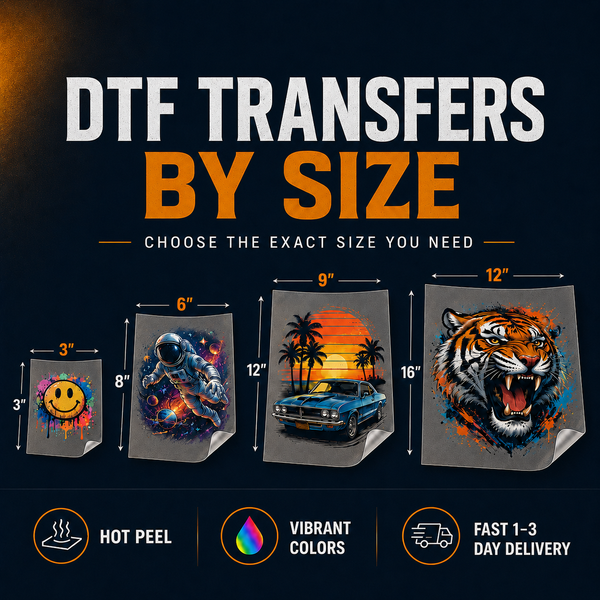
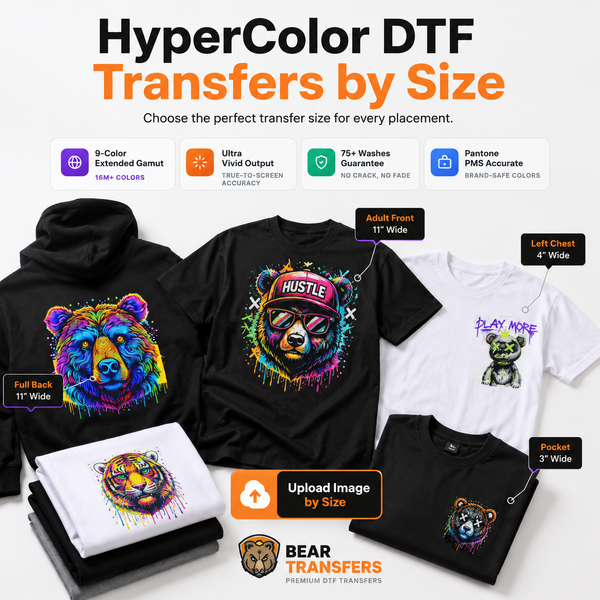
Do not scale the design by eye alone. If the production print will be 11 inches wide, build the mockup around that measurement and the printable area of the selected shirt size. Keep in mind that one fixed transfer looks proportionally larger on a small shirt than on a 2XL.
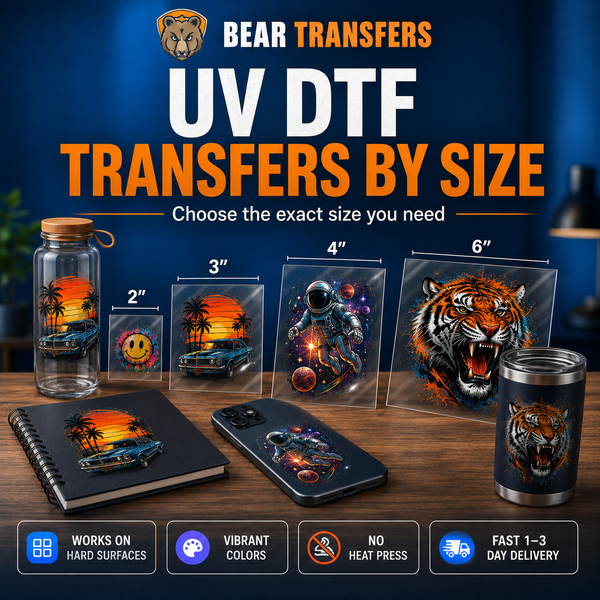
For one-off samples or designs with known dimensions, you can order DTF transfers by size to keep the mockup and physical product aligned.
Make artwork follow the fabric
A perfectly flat rectangle placed over a wrinkled shirt looks artificial. Use your editing software’s warp, displacement, masking, and blend controls so the design follows folds and sits behind hair, jackets, or hands where appropriate.
Keep these effects subtle. DTF artwork should still look crisp, so adding heavy fabric texture or fading can misrepresent the finished print. Also confirm that transparent areas remain transparent and that no background box appears around the design.
If an image is a digital mockup, label it as a mockup in the image set or description. Pairing mockups with at least one physical sample photo gives shoppers a clearer basis for comparison.
Create a Fast, Consistent Listing Workflow
Use one master image template for each blank style. Save guides for the collar, print zone, common transfer widths, and marketplace crop areas. Then duplicate the template, replace the artwork, and verify the placement for each design.
- Export the production artwork at the required size and resolution.
- Create the mockup using the exact blank color and planned print dimensions.
- Print one physical sample for your strongest designs.
- Photograph the full shirt, print detail, fit, and lifestyle views.
- Correct color against the sample without over-editing.
- Export consistent square, portrait, and thumbnail crops.
- Check every image on both a phone and desktop screen.
Name image files descriptively, such as vintage-baseball-shirt-front-navy rather than IMG_2048. Write concise alt text that identifies the garment, design subject, color, and view without stuffing keywords.
Your fulfillment approach should also shape your photography budget. Stocked bestsellers may justify several model shoots, while low-volume designs can begin with polished mockups and one shared blank sample. Compare the tradeoffs in print-on-demand versus inventory before deciding how many products to photograph.
FAQ
How many images should a shirt listing include?
Aim for enough images to show the front, print detail, garment color, scale, and fit. Five to seven purposeful images are generally more useful than a larger group of nearly identical views.
Should the first image be a photo or a mockup?
Use the image that shows the design most clearly and accurately. A strong physical photo builds trust, while a clean mockup may perform better when a real photo has distracting lighting or styling.
Can I use the same mockup for every shirt color?
Only if you accurately change the garment color and verify design contrast. Light ink, dark ink, and transparent artwork can look very different across blank colors, so inspect each version separately.
What photo size should I upload?
Follow your selling platform’s current requirements and upload a high-resolution image with enough space for cropping. Keep the shirt large in the frame and confirm that important design details remain visible in the mobile thumbnail.
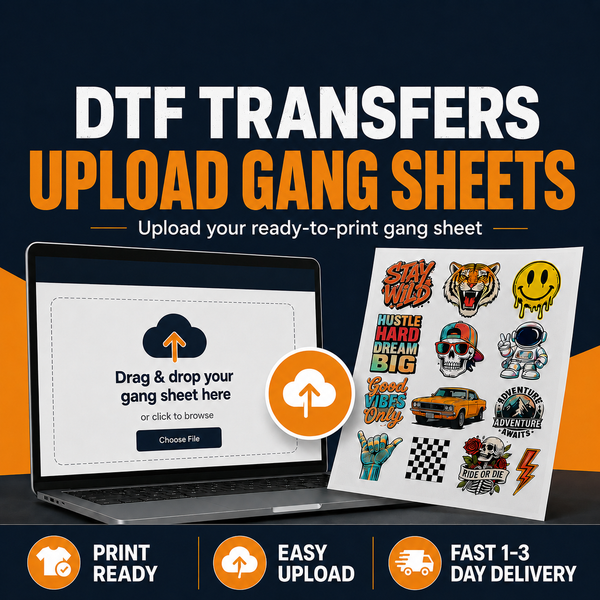
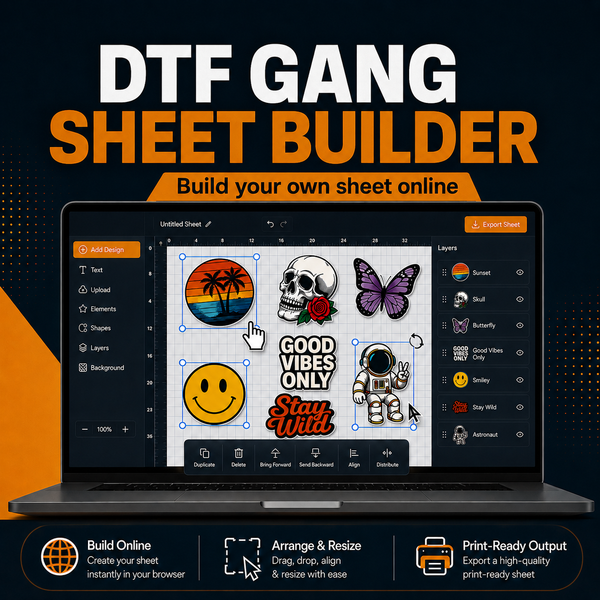
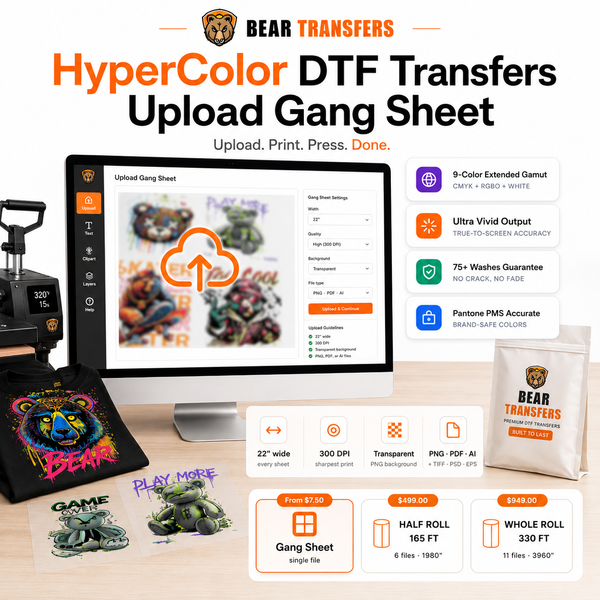
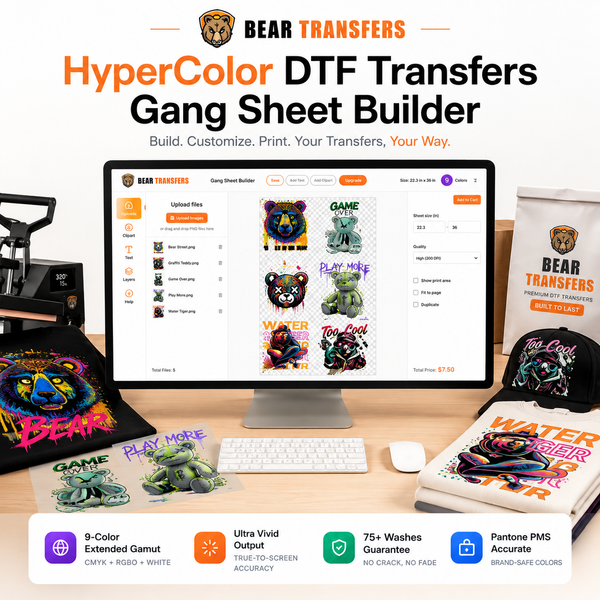
When your artwork and mockup dimensions are ready, build a DTF gang sheet online to turn multiple designs into press-ready transfers.