



Step-by-step guide
How to Use the Gang Sheet Builder
Create a print-ready DTF gang sheet in minutes. Choose the workflow that fits you — full control with the Gang Sheet Builder, or let Auto Build arrange everything for you.
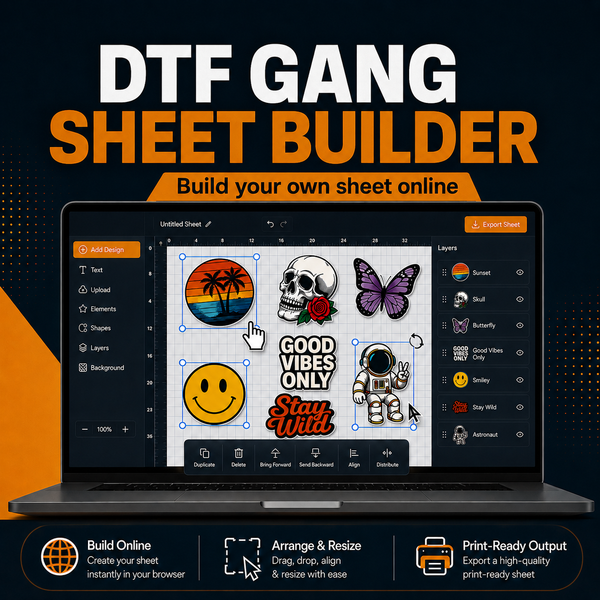
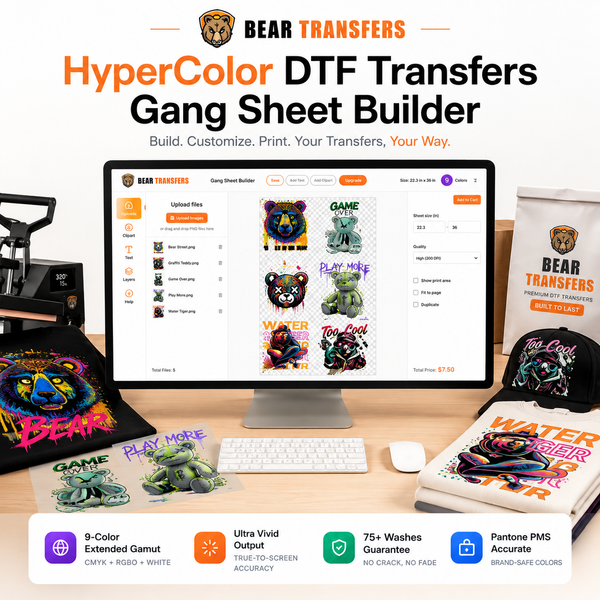
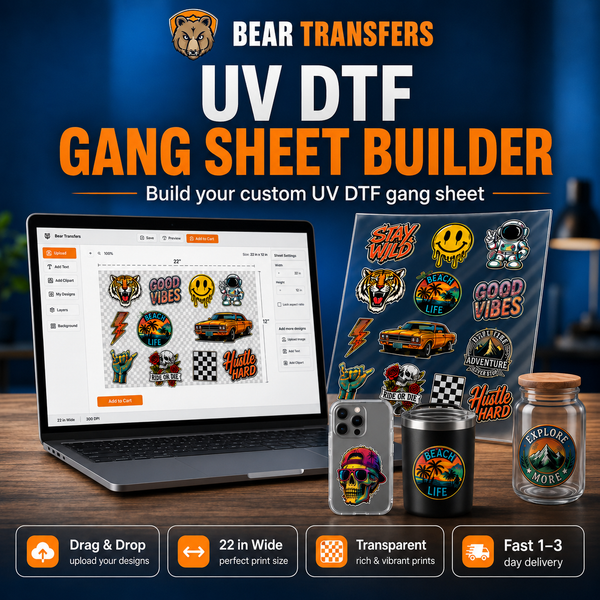
Place, resize, and arrange every design exactly how you want — ideal when you need precise control over your sheet.
Select your size & upload your images
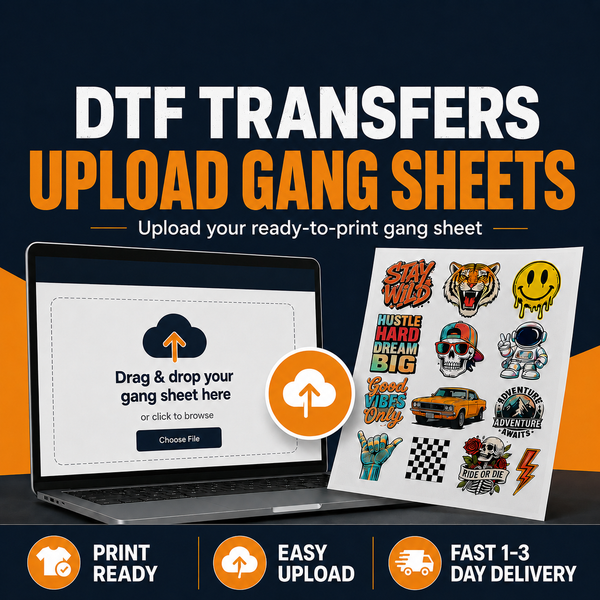
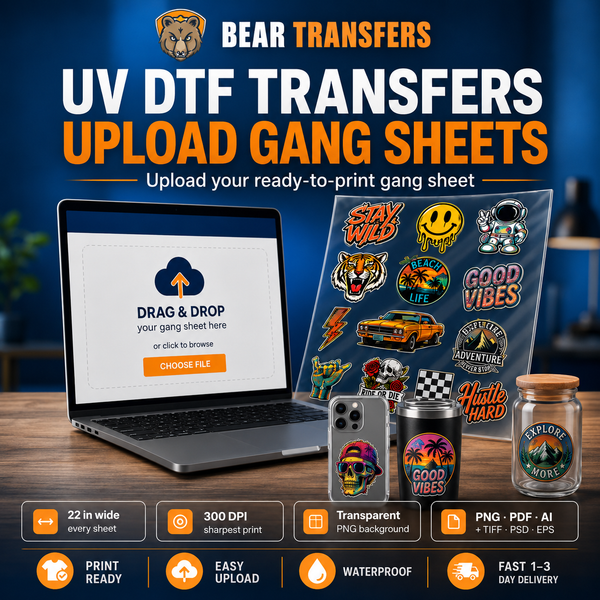
Pick your gang sheet size, then upload the images you want to print. Your artwork drops straight onto the sheet, ready to arrange.
Adjust size & quantity, then duplicate
Click any image to resize it and set how many copies you need. Duplicate your designs as many times as you like to fill the sheet.
Fill the sheet with Auto-Fill
Tap the Auto-Fill Sheet option and the builder automatically fills the remaining space with your design — no empty gaps, no wasted material.
Add services, save & add to cart
Need it faster or pre-cut? Add Prioritized Production and the Transfer Cutting Service if you need them. When you're happy, save your gang sheet and add it to your cart.
The fastest route to a finished sheet. Upload, set your sizes, and let the builder handle the layout for you.
Choose Auto Build & upload your images
Open the builder, select the Auto Build option, and upload the images you want to print.
Set sizes & enter quantities
Adjust the size of each image and enter the quantity you need. That's all the builder needs to get to work.
Your gang sheet is ready in seconds
Auto Build arranges everything for you in seconds. Add Prioritized Production and the Transfer Cutting Service if you need them, then save your gang sheet and add it to your cart.
Ready to build your gang sheet?
Jump into the builder and turn your designs into a print-ready DTF gang sheet in minutes.
Start building now