

Fix Gang Sheet Spacing, Bleed and Rotation Mistakes

A tightly packed gang sheet can lower your transfer cost, but squeezing in one more logo is not worth damaged edges, difficult cutting, or incorrectly sized prints. Fixing spacing, bleed, and rotation before checkout gives you a cleaner production file and transfers that are easier to separate and press.
The key is to optimize usable space without treating every empty area as wasted material. Use the following checks whether you build your layout online or prepare the entire sheet in design software.
Diagnose the Gang Sheet Before Rearranging It
Start by viewing the complete sheet at 100% zoom. A layout can look clean when zoomed out while still containing overlapping artwork, clipped shadows, tiny gaps, or transparent pixels that affect placement.
Check the final sheet dimensions first. Then confirm the printed width and height of every design, especially when the same logo appears in several sizes. A common mistake is resizing artwork visually without verifying its exact dimensions, which can turn an intended 11-inch back print into a smaller or larger transfer.
Next, identify which type of setup you are using:
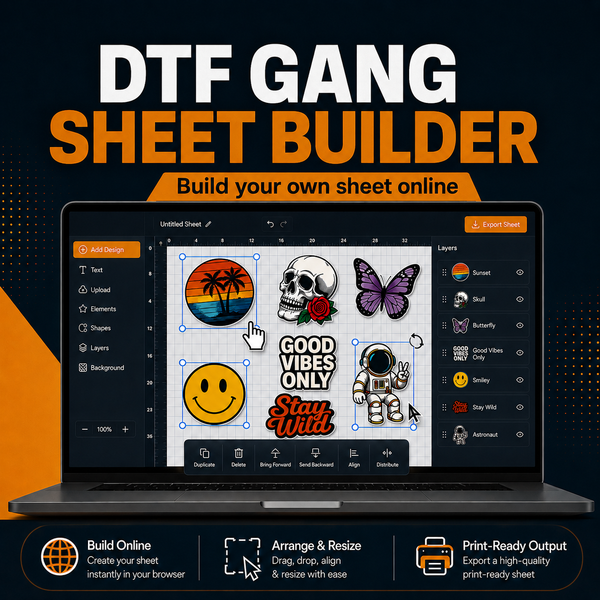
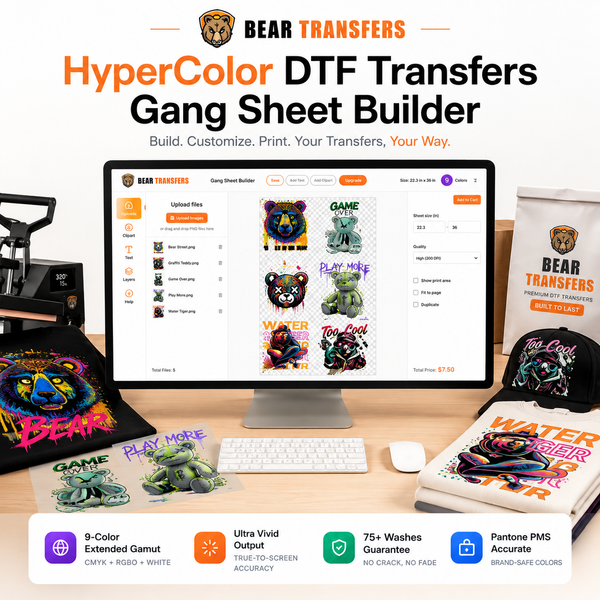
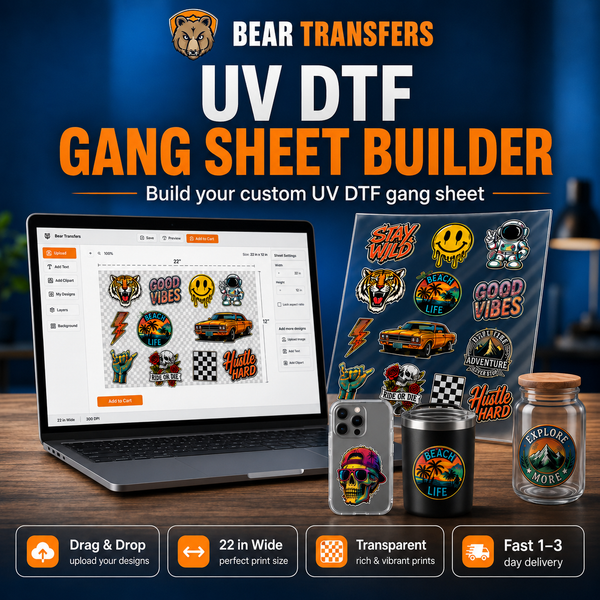
- Online builder: Use the DTF gang sheet builder to upload individual designs, set their dimensions, duplicate them, and arrange them on the selected sheet.
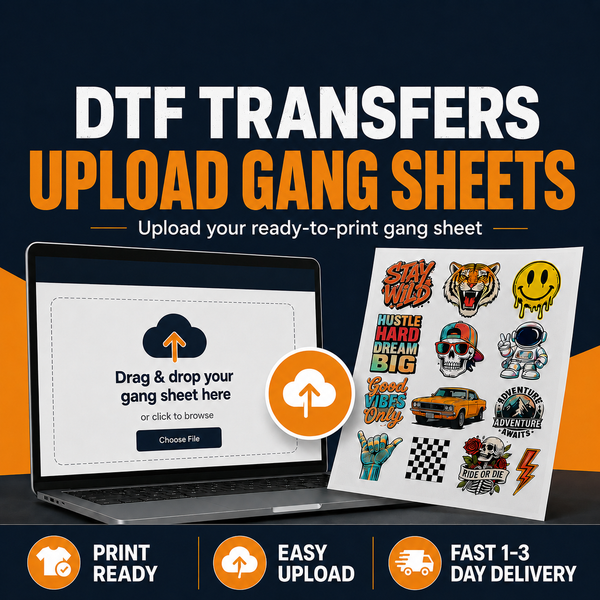
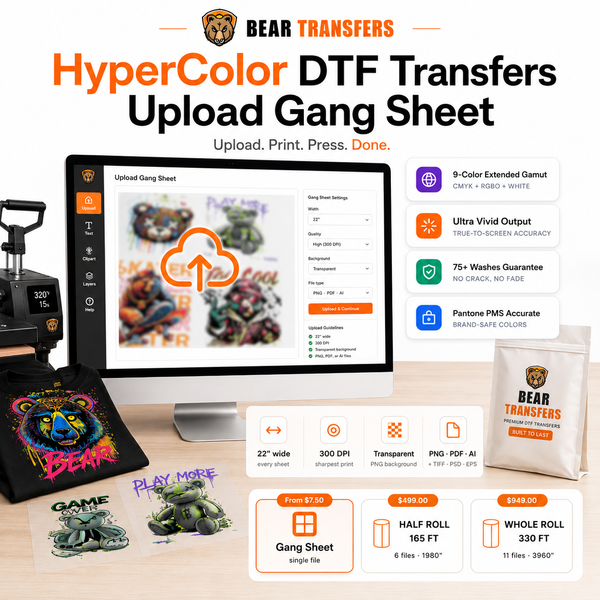
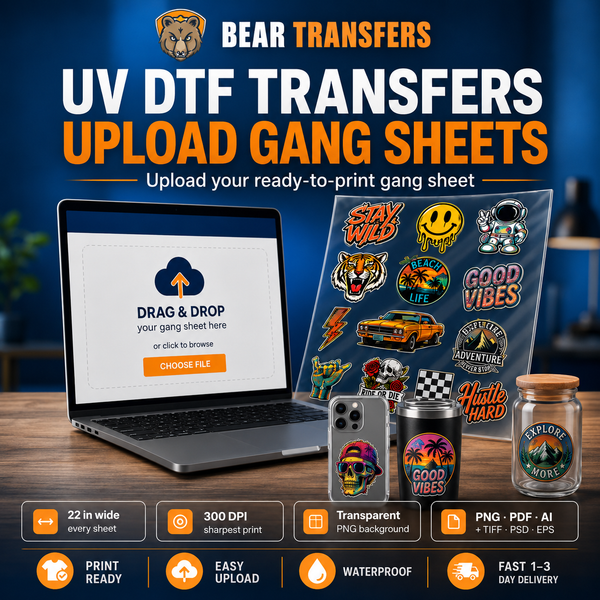
- Finished production file: If you created the complete layout in Illustrator, Photoshop, Canva, Affinity, or another program, you can upload your own ready-made gang sheet.
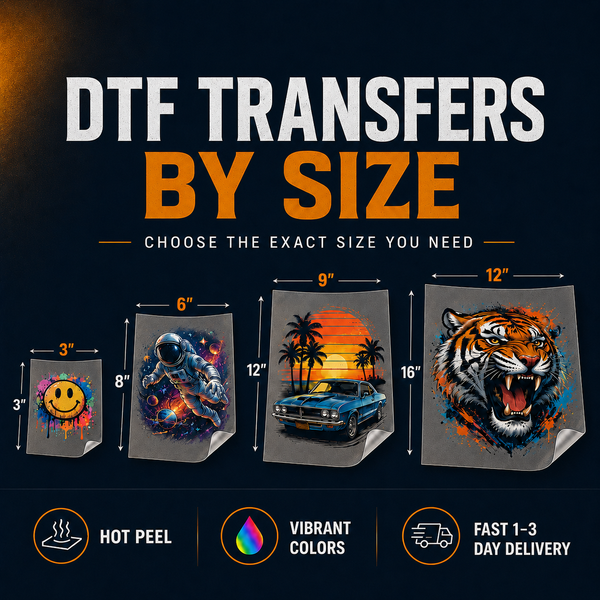
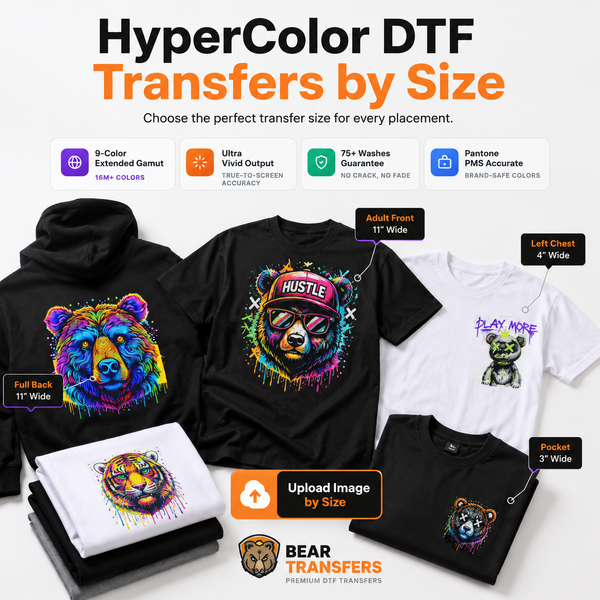
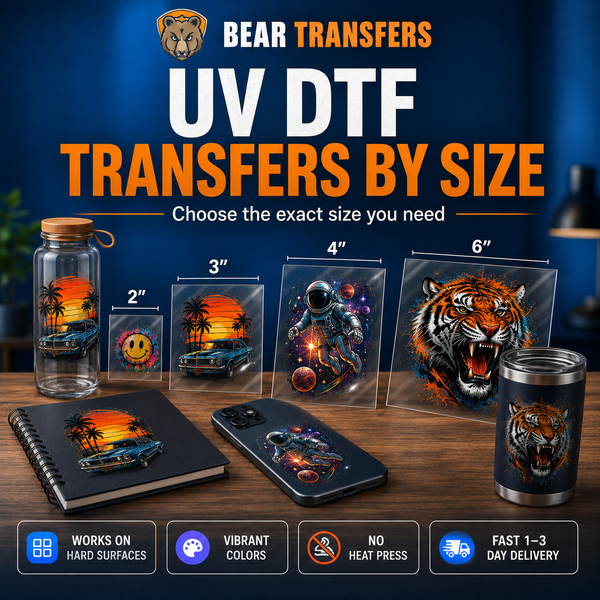
- Separate transfer sizes: When you only need a few designs and do not want to arrange a sheet, it may be simpler to order DTF transfers by size.
Do not mirror the artwork unless the product instructions specifically tell you to do so. Also inspect the file with the background hidden. A white canvas may conceal unwanted white boxes, stray pixels, or a background that is not actually transparent.
Fix Spacing Without Wasting the Sheet
Spacing has two jobs: it prevents neighboring designs from touching, and it leaves enough room to cut each transfer apart. Artwork can technically fit within the sheet boundaries and still be frustrating to use if scissors must pass directly against a printed edge.
Use a practical cutting gap
A quarter-inch gap between designs is a useful starting point for general scissor cutting. Increase the gap when artwork has fine projections, irregular contours, large transparent shadows, or edges that would be easy to nick. You may be able to use a smaller gap for straight rectangular graphics cut with a paper trimmer, but inspect the entire cutting path first.
Spacing does not need to be identical everywhere. Place straight edges closer together and leave more working room around detailed shapes. The objective is not visual symmetry; it is safe, repeatable separation.
| Layout problem | Likely result | Practical fix |
|---|---|---|
| Designs nearly touch | Edges are cut or neighboring film remains attached | Add a cutting channel between the designs |
| Large empty blocks remain | Usable sheet area is wasted | Rotate or regroup smaller artwork |
| Artwork touches the sheet edge | Details may be clipped | Move the design inward and inspect its full bounds |
| Uneven transparent padding | Designs appear spaced farther apart than expected | Crop each file to its visible artwork |
Remove invisible spacing
A file may contain transparent canvas extending several inches beyond the visible design. The builder reads the file boundary, so that invisible area can block other artwork and make efficient nesting difficult. Crop transparent margins closely without cutting off glows, shadows, distressed texture, or anti-aliased edge pixels.
Keep related transfers in recognizable groups when it helps fulfillment. For example, placing each customer’s left-chest logo near the matching back print can reduce sorting errors even if a different arrangement saves a small amount of space.
Understand What Bleed Means for DTF Transfers
Traditional paper printing often extends color beyond a trim line to prevent a white edge after cutting. Standard DTF transfers are different: the printed design transfers from film to fabric, and you normally cut the film around the artwork rather than trimming through the printed image.
That means most DTF artwork does not need conventional print bleed. Adding a colored border beyond the intended design can change its finished size and produce an unwanted outline. Instead, protect the actual artwork with transparent room for handling and cutting.
Watch for clipped effects
Shadows, glows, paint splashes, distress marks, and thin strokes are the elements most often mistaken for extra canvas. Before cropping, zoom in and confirm that these details fade naturally rather than ending in a hard line at the file boundary.
Also check for partial clipping on all four sides. If a letter, outline, or shadow touches the document edge, expand the canvas slightly and re-export. The fix should preserve transparent pixels around the visible effect, not add a printed color border.
For a solid rectangular graphic, the artwork should fill its intended dimensions. Do not add bleed unless you have a specific finishing process that requires cutting through the printed area. If you are evaluating color, edge detail, and transfer feel before a larger order, a DTF and UV DTF sample pack provides physical examples to review.
Rotate Designs Without Creating New Errors
DTF artwork can generally be rotated 90 or 180 degrees on the film without changing how it presses. Unlike fabric pieces, transfers do not have a grain direction. After cutting, you simply turn the individual transfer to the correct orientation on the garment.
Rotation is especially useful for placing small chest logos beside tall back prints or fitting narrow sleeve graphics into leftover columns. Try several orientations before reducing a design’s size. Resizing may make text harder to read, while rotation preserves the intended dimensions.
Recheck dimensions after rotating
Width and height switch positions when a design rotates 90 degrees. Confirm the displayed dimensions after rotation rather than assuming the original width still represents the horizontal measurement on the sheet.
Be careful with automated rotation if your production workflow depends on groups. A customer name, number, and matching logo may fit more efficiently when scattered across the sheet, but that arrangement can slow cutting and sorting. Efficiency should include labor after printing, not only the amount of film used.
Rotation also cannot fix low resolution. If small text or fine lines look pixelated, rotating the artwork only changes their direction. Return to the source file, export at the final print dimensions, and use a high-resolution transparent PNG or another accepted format. For artwork requiring an expanded color range, consider the HyperColor 9-color RGB DTF transfer builder.
Run a Final Preflight Before Ordering
A two-minute preflight is faster than rebuilding a sheet after spotting a mistake. Review both the full layout and each unique design at close zoom.
- Confirm the sheet size. Make sure the document or builder selection matches the product dimensions you intend to order.
- Verify every transfer size. Check chest prints, youth designs, sleeve graphics, and full backs individually.
- Inspect transparency. Remove accidental backgrounds and crop excessive invisible canvas.
- Trace the cutting paths. Confirm that scissors or a trimmer can pass between designs without touching printed areas.
- Check every outer edge. Move artwork away from the sheet boundary and restore any clipped shadows or outlines.
- Review orientation and grouping. Rotate for efficient nesting while keeping sets easy to identify.
- Zoom in on detail. Look for pixelation, tiny text, stray marks, thin lines, and fuzzy edges.
- Save the production version separately. Keep an editable master file so you can change quantities or sizes later.
After the transfers arrive, pair them with correctly sized garments and test your placement before pressing. Bear Transfers also offers blank apparel priced near cost, making it easier to source transfers and garments for the same job. Once finished, strong product photos help customers see the design clearly; use these shirt photography and mockup tips to present the final apparel.
FAQ
How much space should I leave between DTF designs?
A quarter inch is a practical starting point for designs cut with scissors. Leave more space around irregular edges, shadows, and fine details, or follow any spacing requirements shown for your specific product.
Do DTF gang sheets need bleed?
Most do not need conventional printed bleed because the film is cut around the design rather than through it. Preserve transparent room around the artwork, but do not add a colored extension unless your finishing method specifically requires one.
Can I rotate text and logos on a gang sheet?
Yes. Rotating transfers on the sheet does not change their final orientation because each transfer can be turned after cutting. Recheck dimensions and keep related pieces organized.
Why does my design take up more room than it should?
The file probably contains excessive transparent canvas, a hidden object, or an effect extending beyond the visible artwork. Crop the file carefully, then upload it again and verify its printed dimensions.
Correct the spacing, edges, and orientation now, then build your DTF gang sheet online for fast production and efficient ordering.